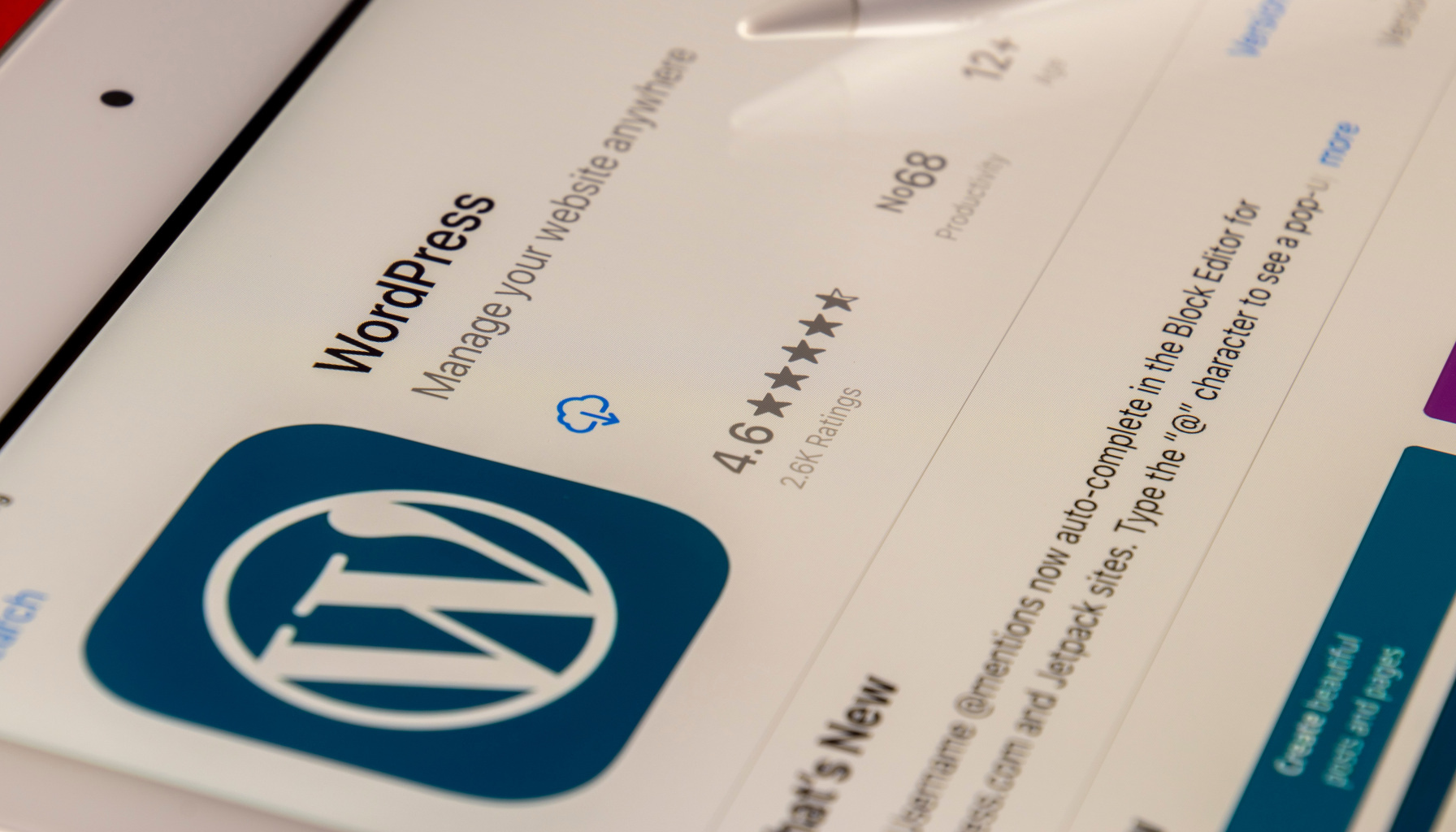
WordPress is the most popular content management system (CMS) that allows you to easily create and maintain a website. Follow these steps to set up your WordPress site:
1. Choose hosting and domain:
- To launch a WordPress site, you first need a hosting provider that supports PHP and MySQL. (I recommend unlimited.rs (unlimited.rs)).
- Once you decide on hosting, you will also need a domain name, which is the unique address of your site on the internet (e.g., www.yoursite.com).
2. Install WordPress:
- Most hosting providers offer easy WordPress installation through their control panel. Look for 'Softaculous (softaculous.com)' (or 'Fantastico') tool within the control panel for a quick installation.
- You can also manually install WordPress by downloading the latest version from WordPress.org (wordpress.org) and uploading it to the server via an FTP client.
3. Choose a theme:
- After installation, log in to your WordPress dashboard, usually accessed via www.yoursite.com/wp-admin.
- Go to 'Appearance' > 'Themes' and click 'Add New'. Here you can browse free WordPress themes. If you decide to hire a web developer for your business, you can check out all the possibilities of my Dozet WordPress theme or explore other web development products that I offer.
- When you find a theme you like, hover over the theme image and click 'Install', then 'Activate'.
4. Create a page:
- In the WordPress dashboard, go to 'Pages' > 'Add New'.
- Add a page title, e.g., 'About Us' or 'Contact'.
- In the text editor, add the page content. The WordPress editor allows you to add text, images, and other media.
- When finished, click 'Publish' to make the page visible on the site.
5. Start a blog post:
- In the dashboard, go to 'Posts' > 'Add New'.
- Enter the title of your post in the field at the top and add content in the editor below.
- You can use the tools in the editor to format text, add links, images, and other media.
- If desired, you can add categories and tags on the right to organize your posts.
- When ready to publish the post, click 'Publish'.
Thank you for taking the time to read this post. I hope you found it informative and helpful. If you have any questions or thoughts, feel free to leave a comment below. Your feedback is always appreciated. Until next time, happy WordPress-ing!
Leave a Comment